# 在 Ubuntu 上安装
## 服务器要求
服务器(或矿机——在此上下文中这两个术语几乎可互换)必须配备 NVIDIA GPU,目前不支持 AMD。最低所需磁盘空间为 32 GB;为可靠性建议使用 SSD 而不是闪存盘。至少需要 8 GB 内存,但 16 GB 将提供更好的稳定性。至于 CPU,系统可以在 1151 插槽的 Celeron 上运行,但若需更高效的性能,建议考虑使用例如 i7-6700 这样的 CPU。
在继续之前,强烈建议禁用任何超频,包括功率限制(PL),并将 GPU 恢复为出厂设置。之后通过压力测试系统以验证稳定性,例如使用 kawpow 算法测试 GPU 并对 CPU 进行负载。监控温度并确保一切运行稳定。
如果系统运行稳定且温度在安全范围内,则继续执行说明的下一步。如果温度过高或出现错误,请先解决这些问题——例如改善散热或排查故障——并在确保稳定运行后再继续。
## 推荐的操作系统与驱动
### 操作系统
* **Ubuntu 22.04 LTS** — 推荐,最佳的 GPU 驱动兼容性
* **Ubuntu 24.04 LTS** — 支持,但内核 6.16+ 可能与较旧的驱动分支(R550 及以下)存在问题
### NVIDIA 驱动
| 分支 | 版本 | CUDA 支持 | 推荐用于 |
| ---------- | ---------- | ------------- | -------------- |
| R580(LTSB) | 580.126.18 | 支持到 CUDA 12.8 | 大多数 GPU,长期稳定性 |
| R590 | 590.48.01 | 支持到 CUDA 13.1 | RTX 50 系列,最新功能 |
安装推荐驱动:
```bash
sudo apt install nvidia-driver-580
```
或针对 RTX 50 系列:
```bash
sudo apt install nvidia-driver-590
```
### CUDA 工具包(用于 ML/AI 工作负载)
运行 ML 工作负载的租户通常需要 CUDA。推荐版本:
| CUDA 版本 | 最低驱动 | 状态 |
| --------- | ----- | ----------------- |
| CUDA 12.8 | R570+ | 稳定,生态支持广泛 |
| CUDA 13.1 | R590+ | 最新,针对 RTX 50 系列优化 |
大多数 Docker 镜像包含它们自己的 CUDA 运行时,因此主机不一定需要在系统范围内安装 CUDA 工具包。然而,拥有兼容的驱动是必需的。
## 注册并添加服务器
### 1. 访问 [网站](http://clore.ai/),注册、登录并导航到市场:
 ### 2. **添加服务器:** 有两种方式添加服务器:
**方法 1:** 转到“我的服务器”部分并点击“+ 添加服务器”按钮。输入服务器名称并点击“下一步”。
### 2. **添加服务器:** 有两种方式添加服务器:
**方法 1:** 转到“我的服务器”部分并点击“+ 添加服务器”按钮。输入服务器名称并点击“下一步”。
 添加后,服务器将以红色圆点标记,表示处于非活动状态。我们稍后会激活它,但现在点击已创建的服务器以获取密钥——稍后你会需要它。
 ### 3. **按顺序运行更新:**
```bash
sudo apt update && sudo apt upgrade -y
```
### 4. 安装依赖项:
```
sudo apt install -y curl git gnupg lsb-release
```
### 5. 切换到超级用户模式:
```bash
sudo -i
```
### 6. **安装软件:**
```bash
bash <(curl -s https://gitlab.com/cloreai-public/hosting/-/raw/main/install.sh)
```
如果系统报告 `git` 缺失,请使用以下命令安装:
```bash
apt install -y git
```
然后重试安装。
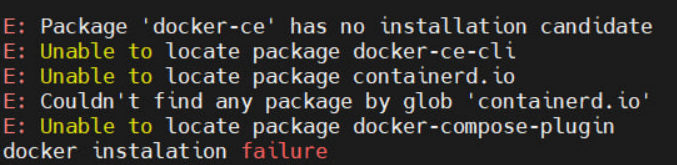
如果遇到 `gpg` 错误,请使用:
### 3. **按顺序运行更新:**
```bash
sudo apt update && sudo apt upgrade -y
```
### 4. 安装依赖项:
```
sudo apt install -y curl git gnupg lsb-release
```
### 5. 切换到超级用户模式:
```bash
sudo -i
```
### 6. **安装软件:**
```bash
bash <(curl -s https://gitlab.com/cloreai-public/hosting/-/raw/main/install.sh)
```
如果系统报告 `git` 缺失,请使用以下命令安装:
```bash
apt install -y git
```
然后重试安装。
如果遇到 `gpg` 错误,请使用:
 ```bash
apt install gpg -y --allow-downgrades
```
```bash
apt install gpg -y --allow-downgrades
```
 之后重新运行安装。
```
bash <(curl -s https://gitlab.com/cloreai-public/hosting/-/raw/main/install.sh)
```
### 7. **激活服务器:**
```bash
/opt/clore-hosting/clore.sh --init-token
```
将 `` 替换为之前获得的密钥。
如果错误提示缺少文件夹或文件,则安装可能未正确完成, `clore-hosting` 文件夹未被创建。在这种情况下,请重复安装。
### 8. **完成:**
重启矿机,等待片刻,然后刷新市场页面。如果一切设置正确,服务器将以绿色圆点标记。
```
sudo reboot
```
之后重新运行安装。
```
bash <(curl -s https://gitlab.com/cloreai-public/hosting/-/raw/main/install.sh)
```
### 7. **激活服务器:**
```bash
/opt/clore-hosting/clore.sh --init-token
```
将 `` 替换为之前获得的密钥。
如果错误提示缺少文件夹或文件,则安装可能未正确完成, `clore-hosting` 文件夹未被创建。在这种情况下,请重复安装。
### 8. **完成:**
重启矿机,等待片刻,然后刷新市场页面。如果一切设置正确,服务器将以绿色圆点标记。
```
sudo reboot
```
 ## 如何禁用所有已安装的服务
如果你需要禁用之前安装的一切:
1. 禁用服务:
```bash
systemctl disable clore-hosting.service
systemctl disable docker.service
systemctl disable docker.socket
```
2. 重启系统:
```bash
reboot
```
## 如何重新启用服务
要重新启用这些服务:
1. 启用服务:
```bash
systemctl enable clore-hosting.service
systemctl enable docker.service
systemctl enable docker.socket
```
2. 重启系统:
```bash
reboot
```
## 移除先前安装的令牌
要删除令牌,请使用命令:
```bash
/opt/clore-hosting/clore.sh --reset
```
包含令牌的文件位于:
```
/opt/clore-hosting/client/auth
```
---
# Agent Instructions: Querying This Documentation
If you need additional information that is not directly available in this page, you can query the documentation dynamically by asking a question.
Perform an HTTP GET request on the current page URL with the `ask` query parameter:
```
GET https://docs.clore.ai/clore.ai/clore.ai-eng-zh/zhen-dui-zhu-ji/installing-clore-hosting/installing-clore-hosting-ubuntu.md?ask=
```
The question should be specific, self-contained, and written in natural language.
The response will contain a direct answer to the question and relevant excerpts and sources from the documentation.
Use this mechanism when the answer is not explicitly present in the current page, you need clarification or additional context, or you want to retrieve related documentation sections.
## 如何禁用所有已安装的服务
如果你需要禁用之前安装的一切:
1. 禁用服务:
```bash
systemctl disable clore-hosting.service
systemctl disable docker.service
systemctl disable docker.socket
```
2. 重启系统:
```bash
reboot
```
## 如何重新启用服务
要重新启用这些服务:
1. 启用服务:
```bash
systemctl enable clore-hosting.service
systemctl enable docker.service
systemctl enable docker.socket
```
2. 重启系统:
```bash
reboot
```
## 移除先前安装的令牌
要删除令牌,请使用命令:
```bash
/opt/clore-hosting/clore.sh --reset
```
包含令牌的文件位于:
```
/opt/clore-hosting/client/auth
```
---
# Agent Instructions: Querying This Documentation
If you need additional information that is not directly available in this page, you can query the documentation dynamically by asking a question.
Perform an HTTP GET request on the current page URL with the `ask` query parameter:
```
GET https://docs.clore.ai/clore.ai/clore.ai-eng-zh/zhen-dui-zhu-ji/installing-clore-hosting/installing-clore-hosting-ubuntu.md?ask=
```
The question should be specific, self-contained, and written in natural language.
The response will contain a direct answer to the question and relevant excerpts and sources from the documentation.
Use this mechanism when the answer is not explicitly present in the current page, you need clarification or additional context, or you want to retrieve related documentation sections.